
AI Setup (OpenRouter)
RJ Nexus uses OpenRouter to power its advanced AI features:
- Auto SEO: generates and audits SEO titles and descriptions.
- AI Translation: translates content while preserving HTML.
- AI Code Review: checks theme and plugin files for bugs and security risks.
OpenRouter gives you access to hundreds of AI models (ChatGPT, Claude, Gemini and more) through a single API key, so you can switch models at any time without changing anything else.
Video Guide: Prefer a video walkthrough? Watch the OpenRouter Setup Tutorial on YouTube.
Time needed: about 5 minutes.
What you need
- An email address or a Google/GitHub account to sign up at OpenRouter.
- Access to your RJ Nexus admin panel (an Admin account).
- (Optional) A small credit balance on OpenRouter if you want to use paid models. Free models (their names end with
:free) cost nothing, but they have usage limits.
Contents
- Part 1: Creating an OpenRouter API key
- Part 2: Configuring RJ Nexus
- Choosing a model
- Recommended settings
- Keeping your key safe
- Troubleshooting
Part 1: Creating an OpenRouter API Key
1. Create an account
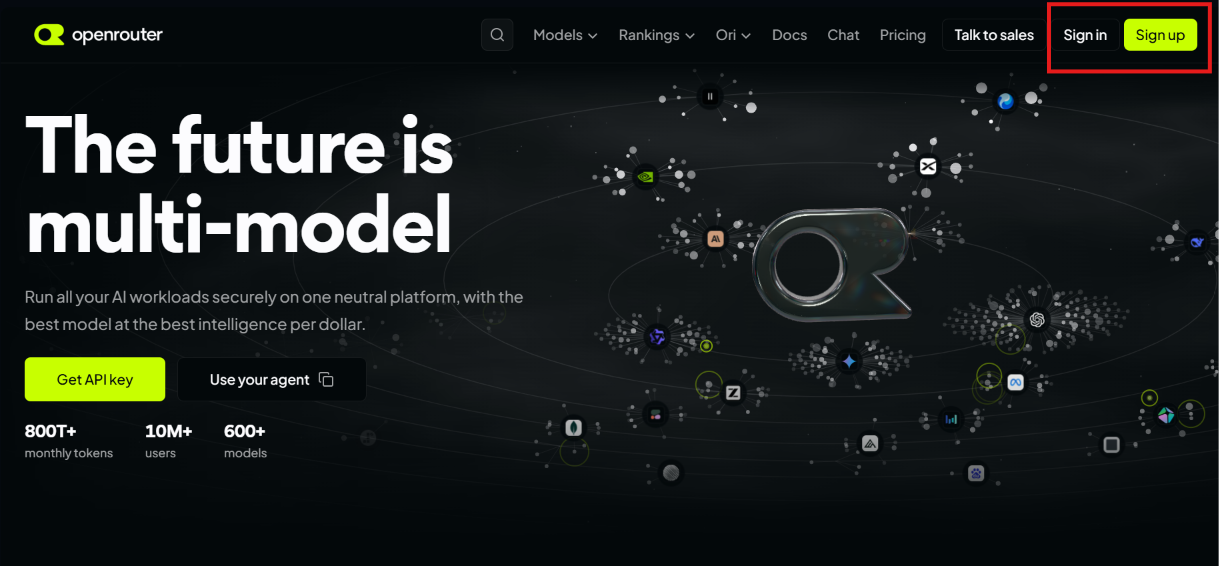
Go to openrouter.ai and click Sign Up or Sign In in the top right corner.
2. Open the Keys page
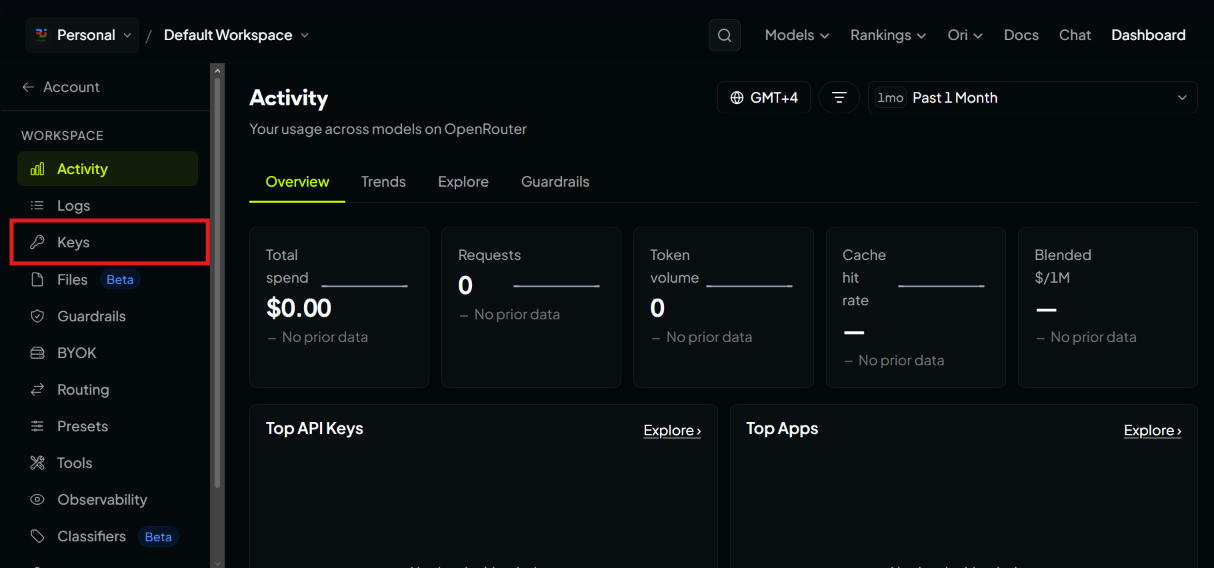
Once logged in, you will see the dashboard. In the sidebar, click Keys (highlighted in red).
3. Create a new key
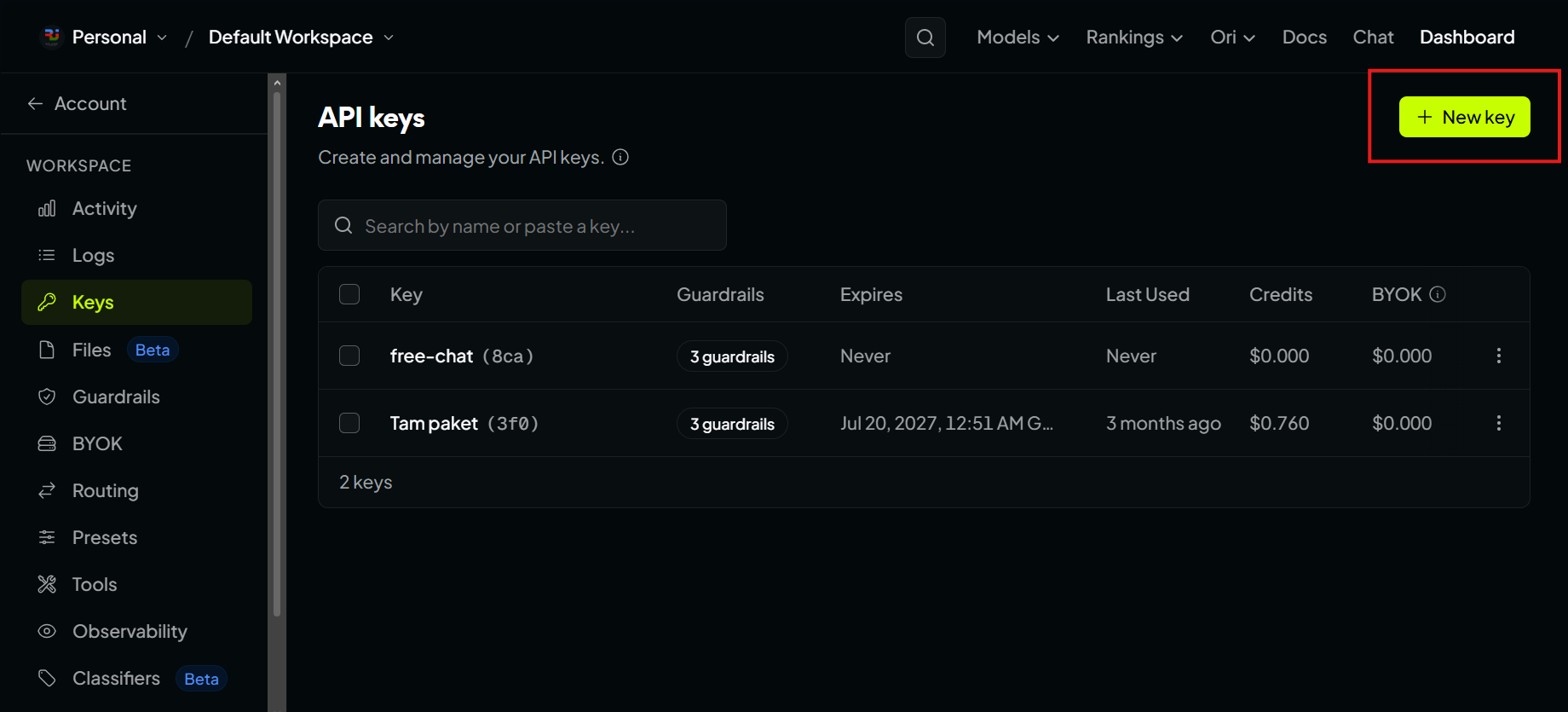
On the Keys screen, click the New Key button.
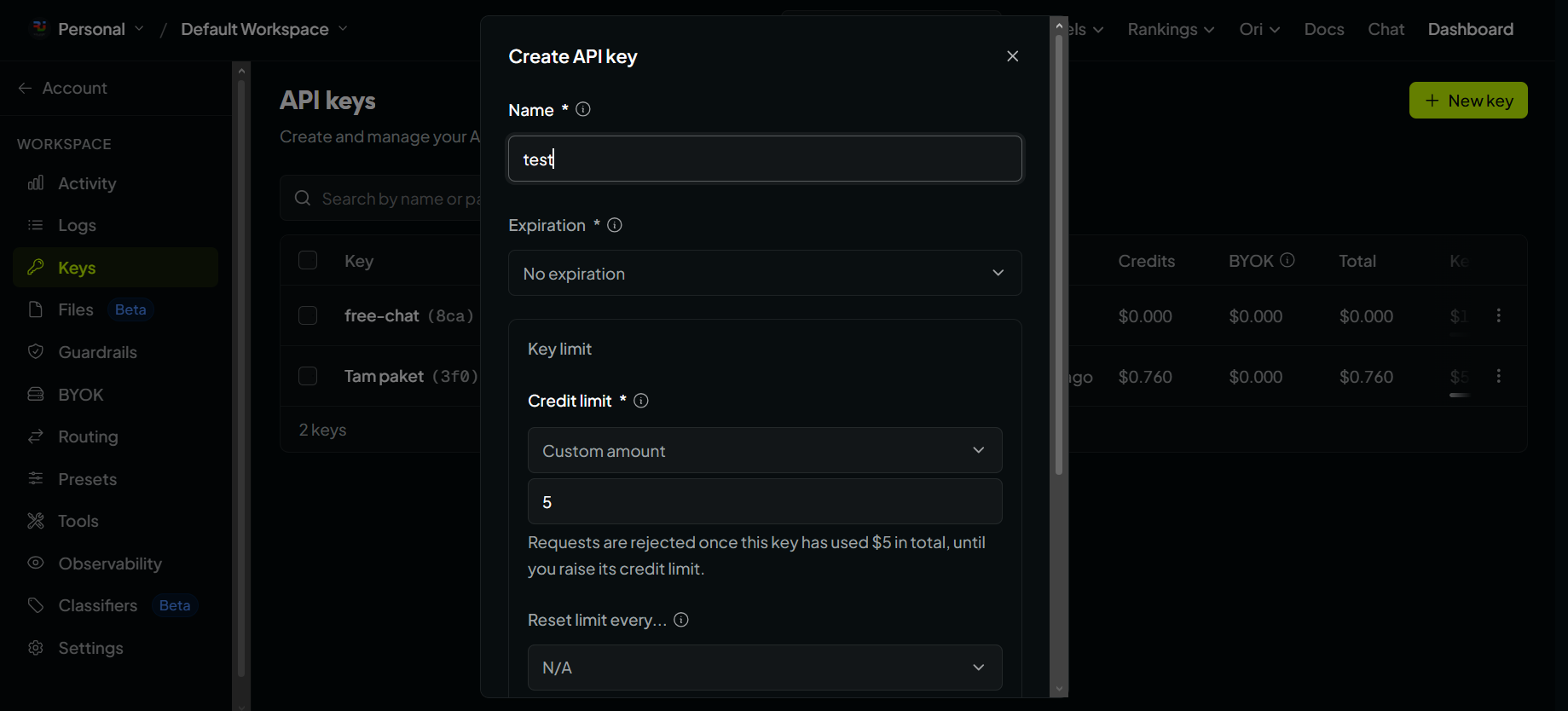
4. Configure the key
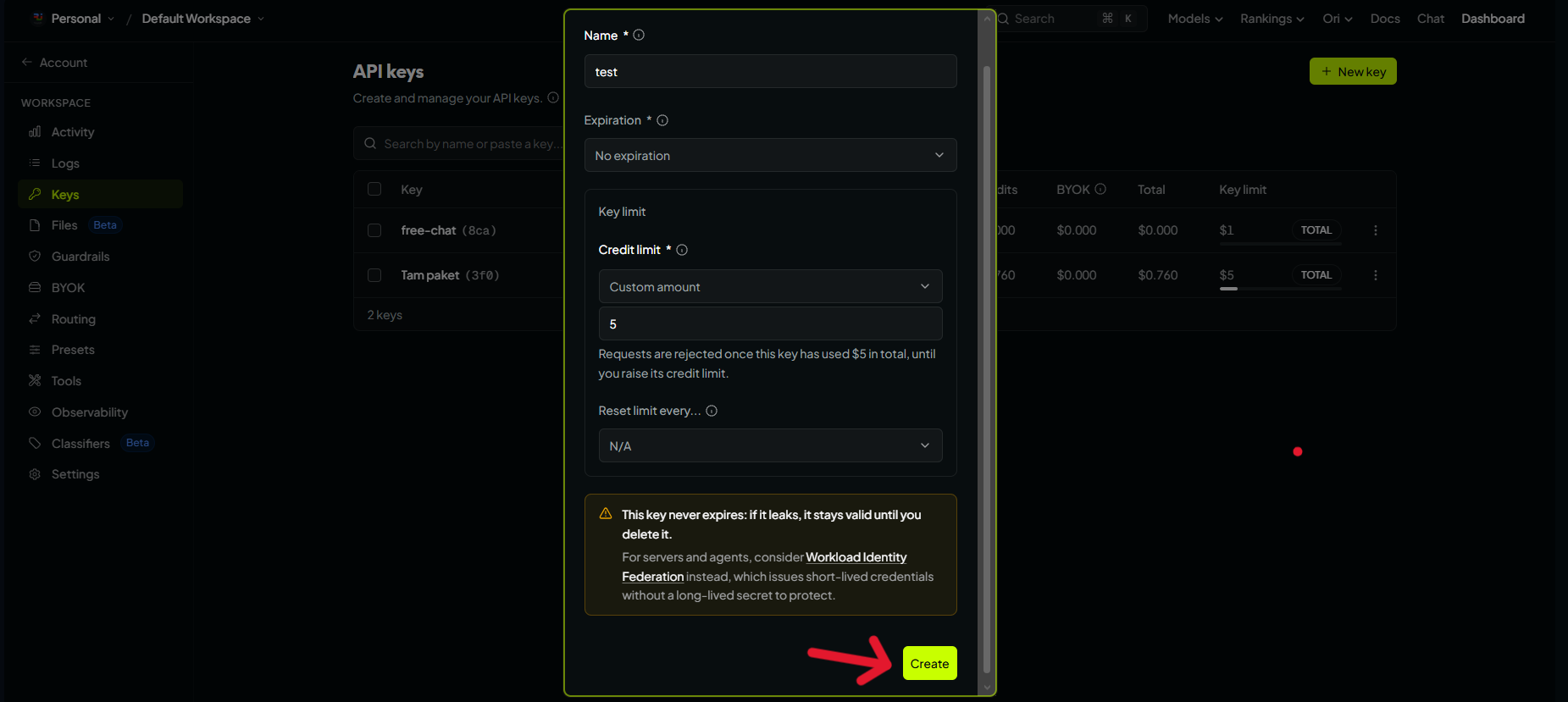
A window will appear where you can set:
| Field | What it does | Suggestion |
|---|---|---|
| Name | A label for the key | RJ Nexus Site |
| Expiration | When the key stops working | Leave empty, or set a date if you rotate keys regularly |
| Credit limit | Maximum spending for this key | Set a small limit (for example $5) to avoid surprise bills |
5. Copy your API key
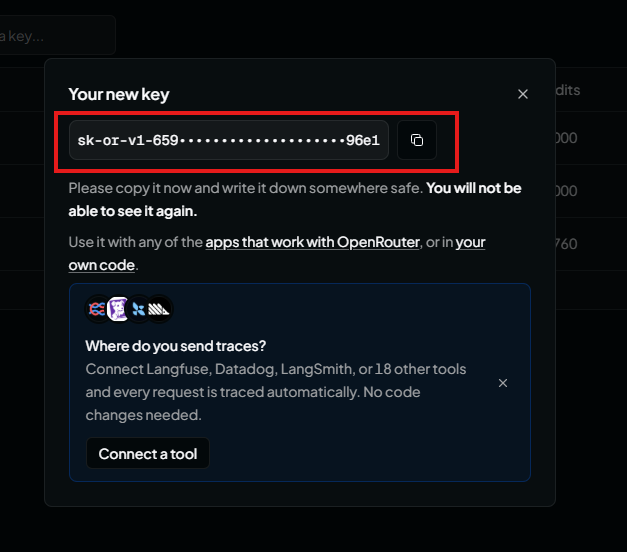
Once created, your API key is shown on screen. Copy it immediately and store it somewhere safe, such as a password manager. OpenRouter will not show it again.
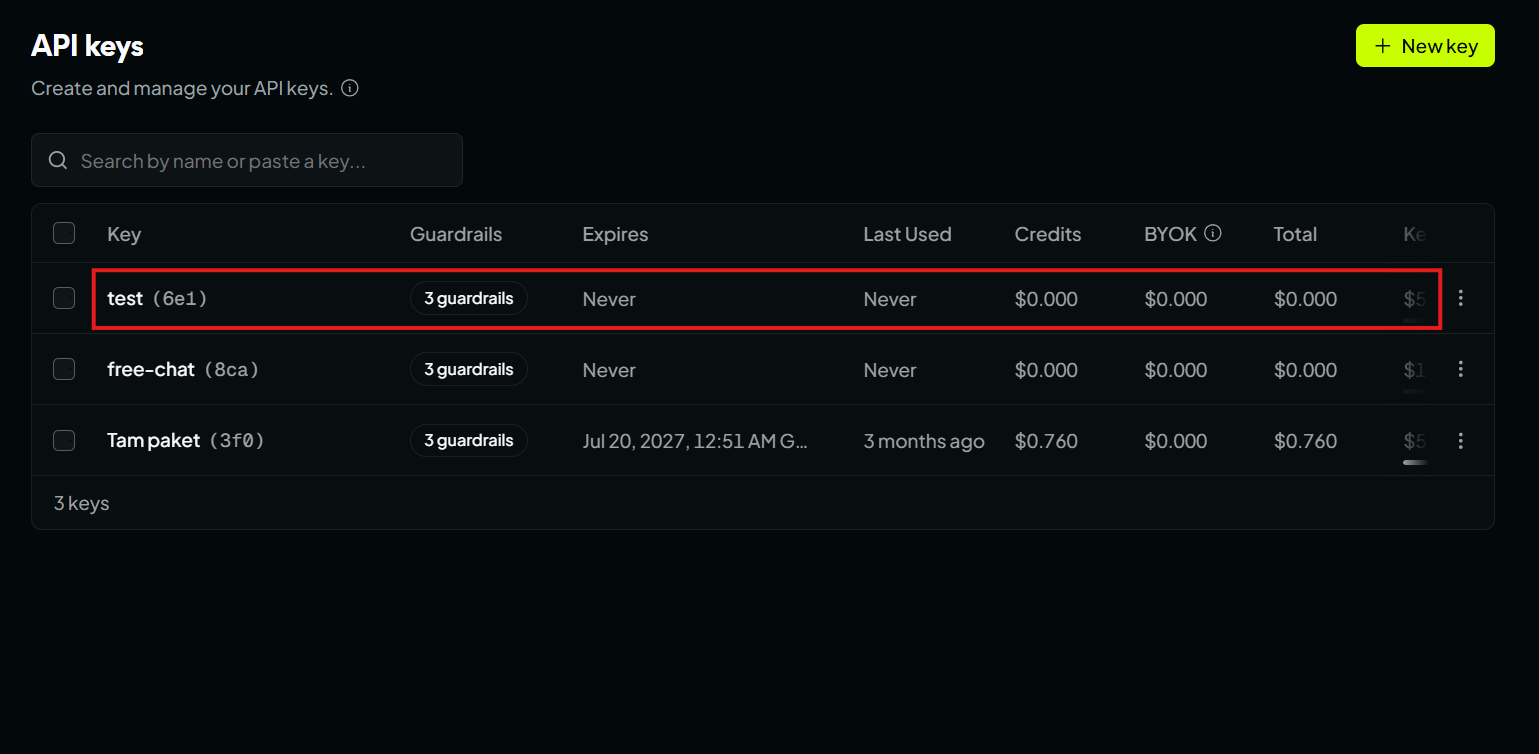
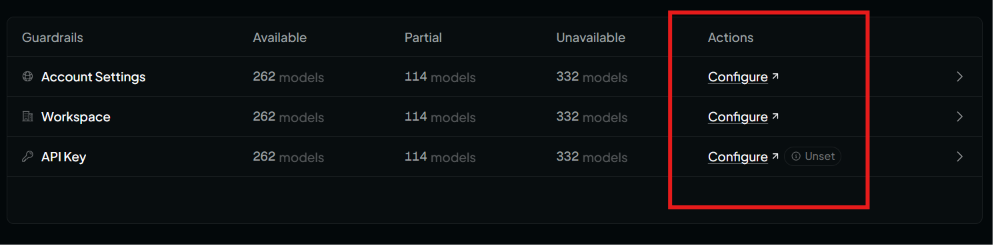
(Optional) You can manage your keys later by clicking them in the list. There you can view each key's configuration, limits and usage.
Part 2: Configuring RJ Nexus
1. Open the AI settings
In the admin sidebar, open Settings.
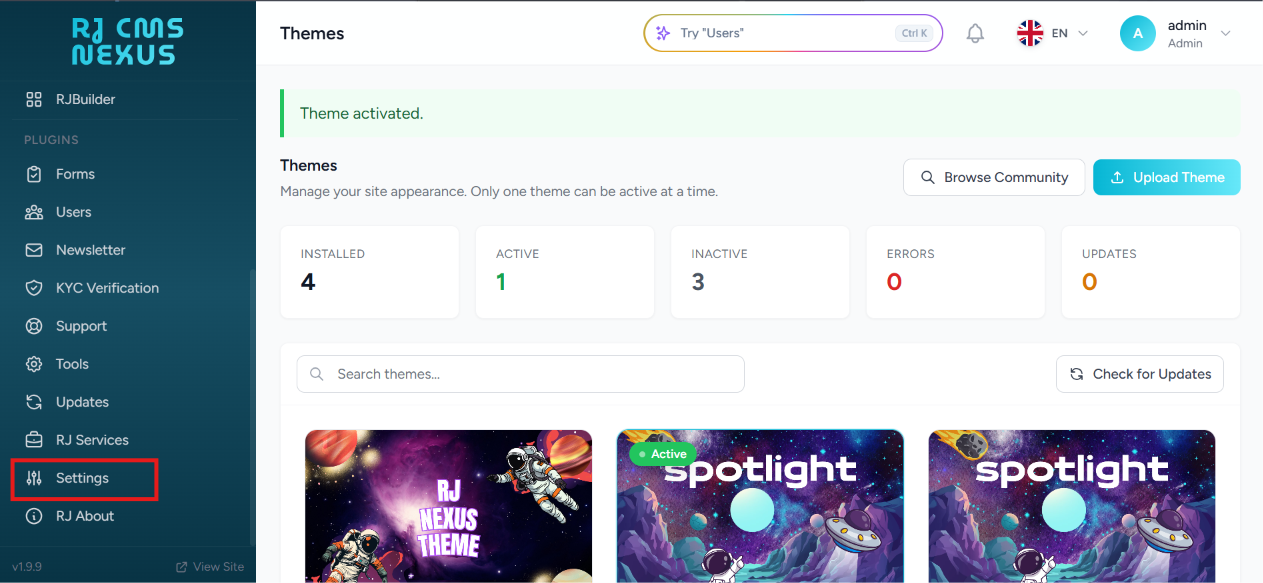
In the settings grid, click the AI card.
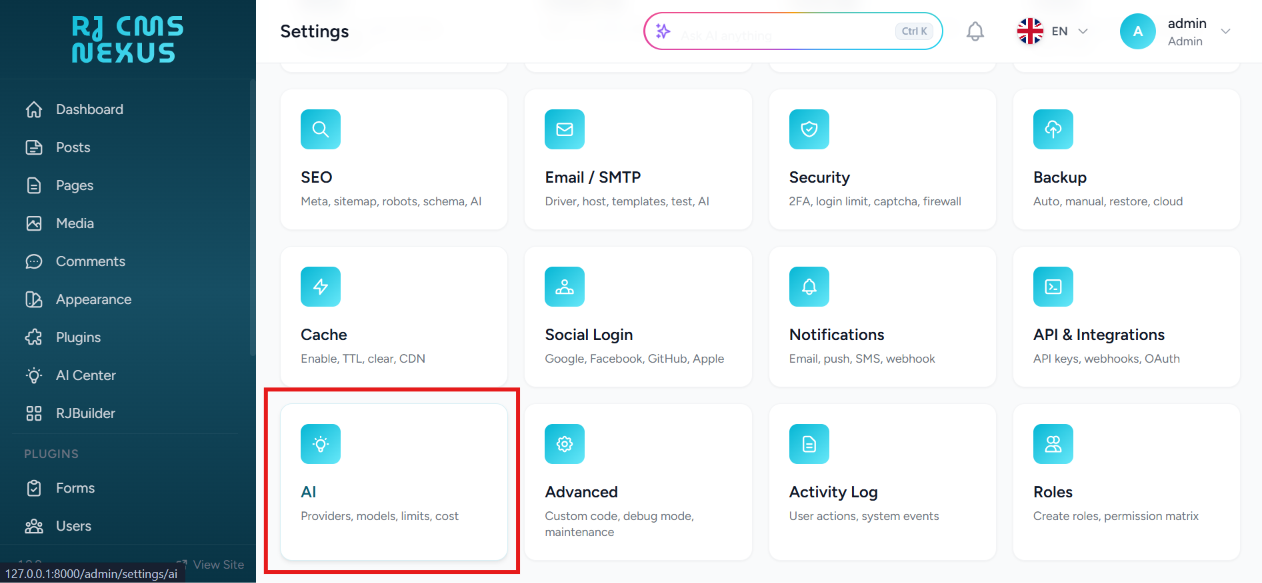
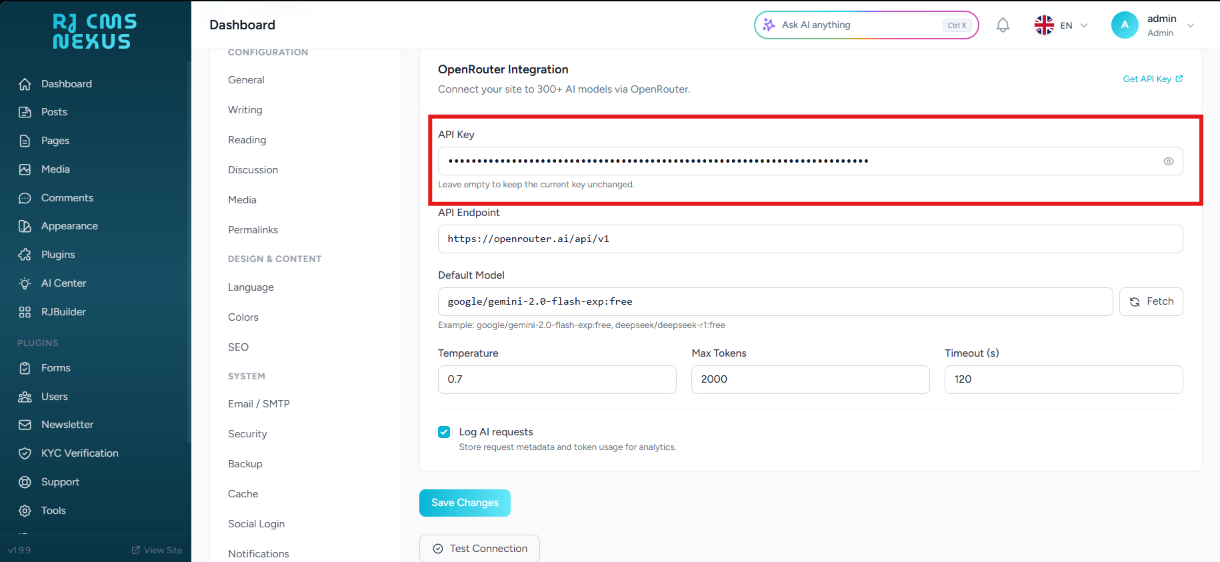
2. Paste your API key
Paste the key you copied from OpenRouter into the API Key field.
3. Understand the AI settings screen
This is the main AI configuration screen. Each colored box marks one section:
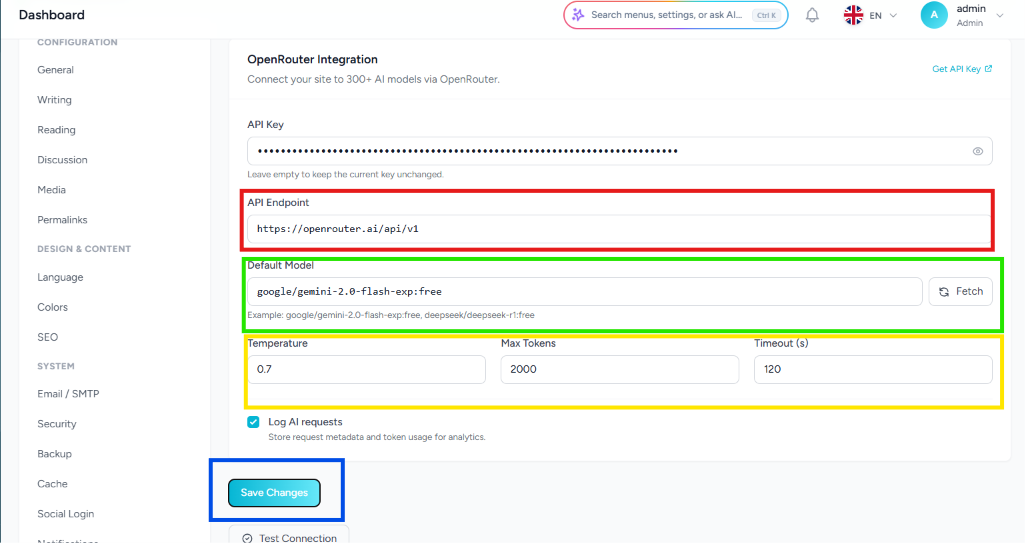
| Box | Section | What it does |
|---|---|---|
| Red | API Endpoint | The default OpenRouter URL. Do not change it unless OpenRouter changes its API address. |
| Green | Default Model | The AI model used by all features. Type a model name manually or use the Fetch button. |
| Yellow | AI Parameters | Controls how the AI behaves (see below). |
| Blue | Save | Saves your configuration. |
AI Parameters
- Temperature: lower values (for example
0.2) make answers focused and predictable, higher values (for example0.8) make them more creative. - Max Tokens: the maximum length of the AI's response.
- Timeout: how long to wait for a response before giving up.
4. Fetch and select a model
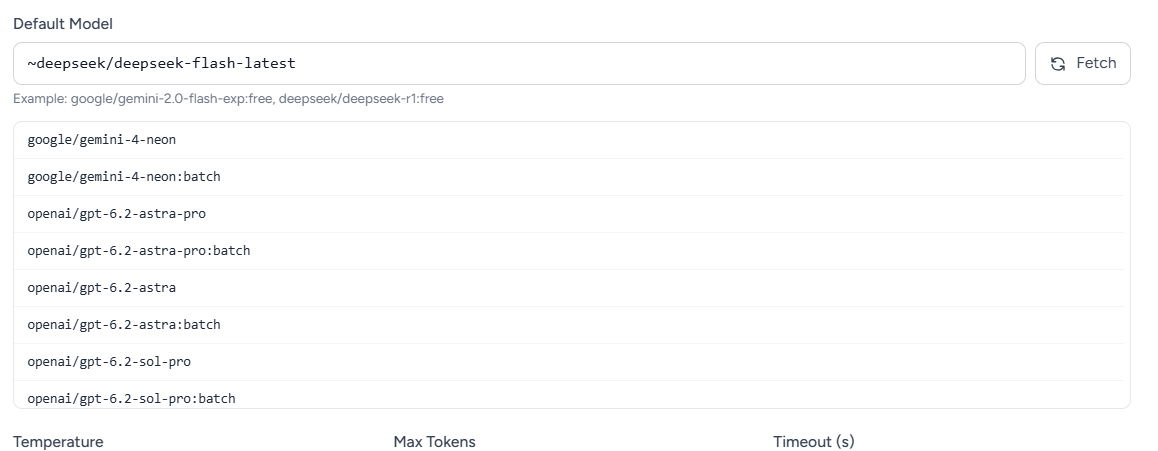
To load the list of available models, click Fetch next to the Default Model field.
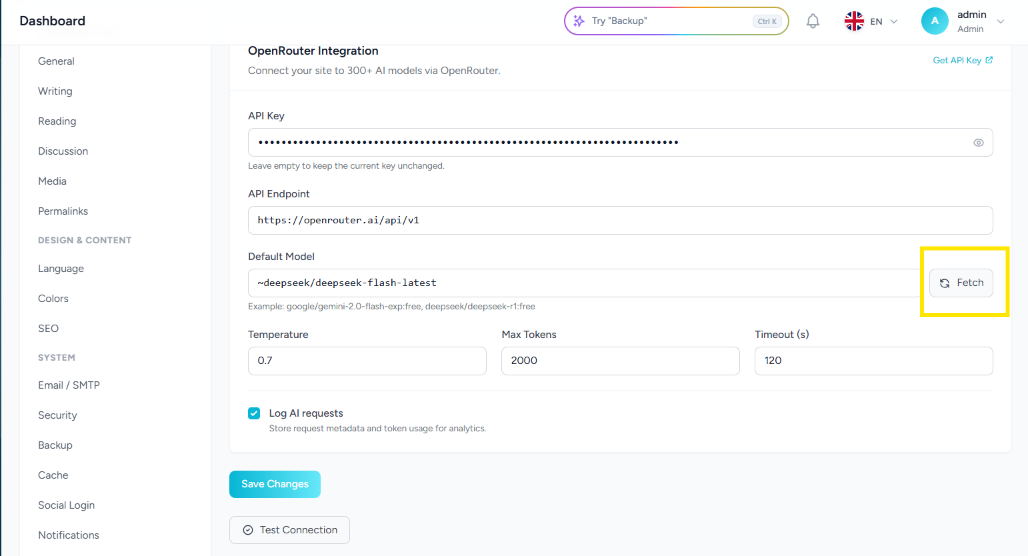
A dropdown list appears. Search for the model you want and select it (for example google/gemini-2.0-flash-exp:free).
5. Check model pricing
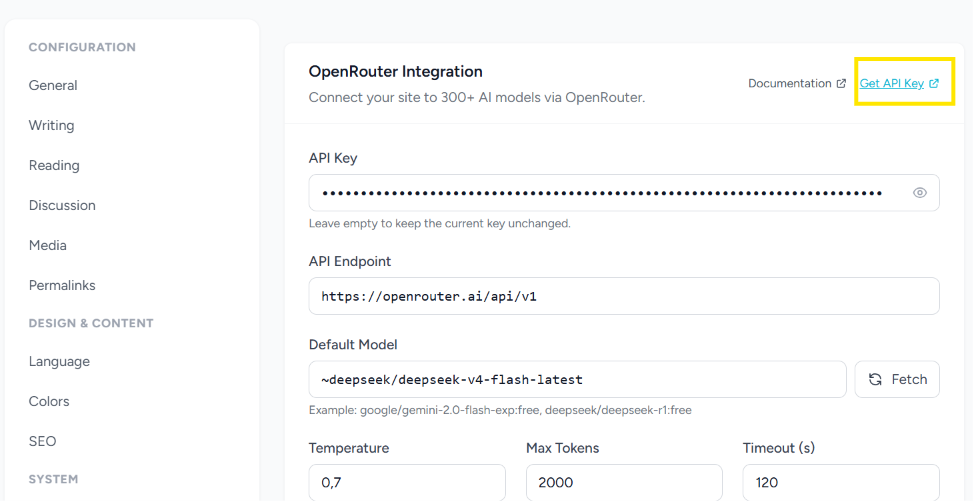
To see what a model costs, click the Get API Key button (or the link next to the model list) to open the OpenRouter models page.
The model list shows pricing for each model:
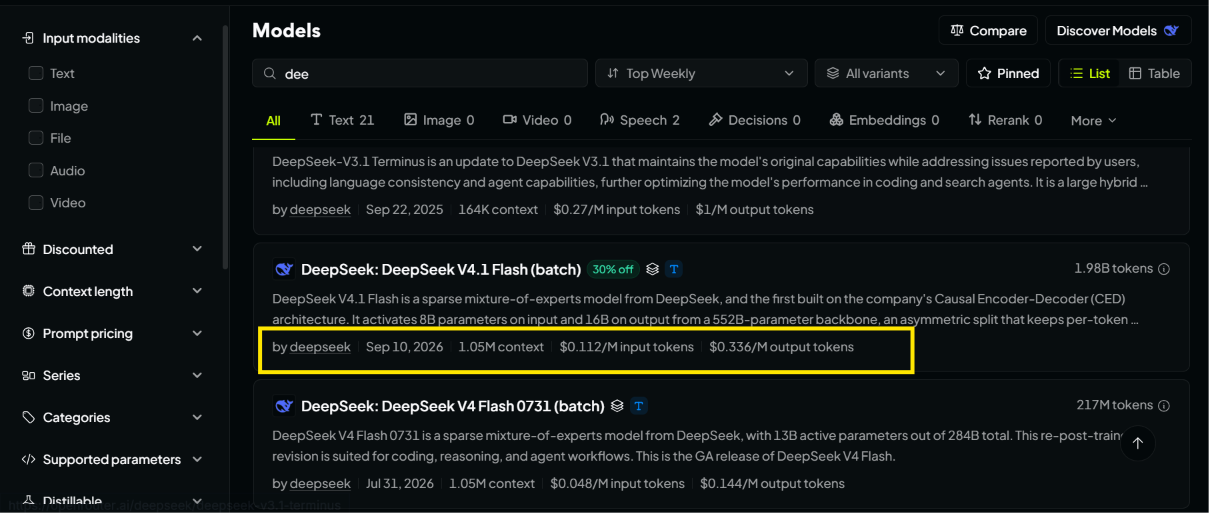
Example: If a model says
$3/M input tokensand$15/M output tokens, you pay $3 for every 1 million tokens you send to the AI and $15 for every 1 million tokens it generates. Free models show$0.
6. Save
After pasting the key and selecting a model, click Save Changes at the bottom of the page. The AI features are now active.
Choosing a model
There is no single best model. Pick based on what you need:
| Goal | What to look for |
|---|---|
| Trying things out | A :free model. Zero cost, but slower and rate limited. |
| Everyday SEO and writing | A fast, low-cost model. Cheaper models are usually good enough. |
| Translation | A model that is strong in your target languages. Test with a short text first. |
| Code review | A larger model. It must return valid JSON, and weaker models sometimes do not. |
Tip: start with a free or cheap model, check the results, and upgrade only if the quality is not good enough.
Recommended settings
These are starting points, not strict rules. Adjust them to your results.
| Setting | Suggested value | Notes |
|---|---|---|
| Temperature | 0.2 to 0.4 |
Best for SEO, translation and code review, where accuracy matters. Raise it for creative writing. |
| Max Tokens | 1500 or higher |
Increase it if long answers or translations are cut off. |
| Timeout | 60 seconds or more |
Large models and long texts can take a while to respond. |
Keeping your key safe
Your API key lets anyone spend your OpenRouter credits, so treat it like a password.
- Never share it in screenshots, chats, videos or public repositories.
- Set a credit limit on the key when you create it.
- Use a separate key for each website so you can disable one without affecting the others.
- If a key leaks, delete it on the OpenRouter Keys page and create a new one, then paste the new key in Settings → AI.
Troubleshooting
| Problem | Likely cause | What to do |
|---|---|---|
| "Invalid API key" or authentication error | Key copied incorrectly, or it was deleted or expired | Create a new key and paste it again. Make sure there are no spaces before or after it. |
| "Insufficient credits" or payment error | A paid model is selected and your balance is empty | Add credits on OpenRouter, or switch to a :free model. |
Rate limit error (429) |
Free models have strict usage limits | Wait a minute and retry, or choose another model. |
| Model not found | The model was renamed or removed by its provider | Click Fetch and select a model from the current list. |
| Request times out | The model is slow or busy, or the text is long | Increase Timeout, shorten the text, or pick a faster model. |
| Fetch button shows no models | Key is missing or invalid, or the server cannot reach OpenRouter | Check the key first. If it is correct, make sure your hosting allows outgoing requests to openrouter.ai. |
| AI Code Review says it could not parse the response | The model did not return valid JSON | Choose a stronger model and try again. |
| Answers are cut off | Max Tokens is too low | Increase Max Tokens. |
Still stuck? Ask in GitHub Discussions and include the error message (never your API key).